How to set up IRBC MCP
Last updated: September 23, 2026
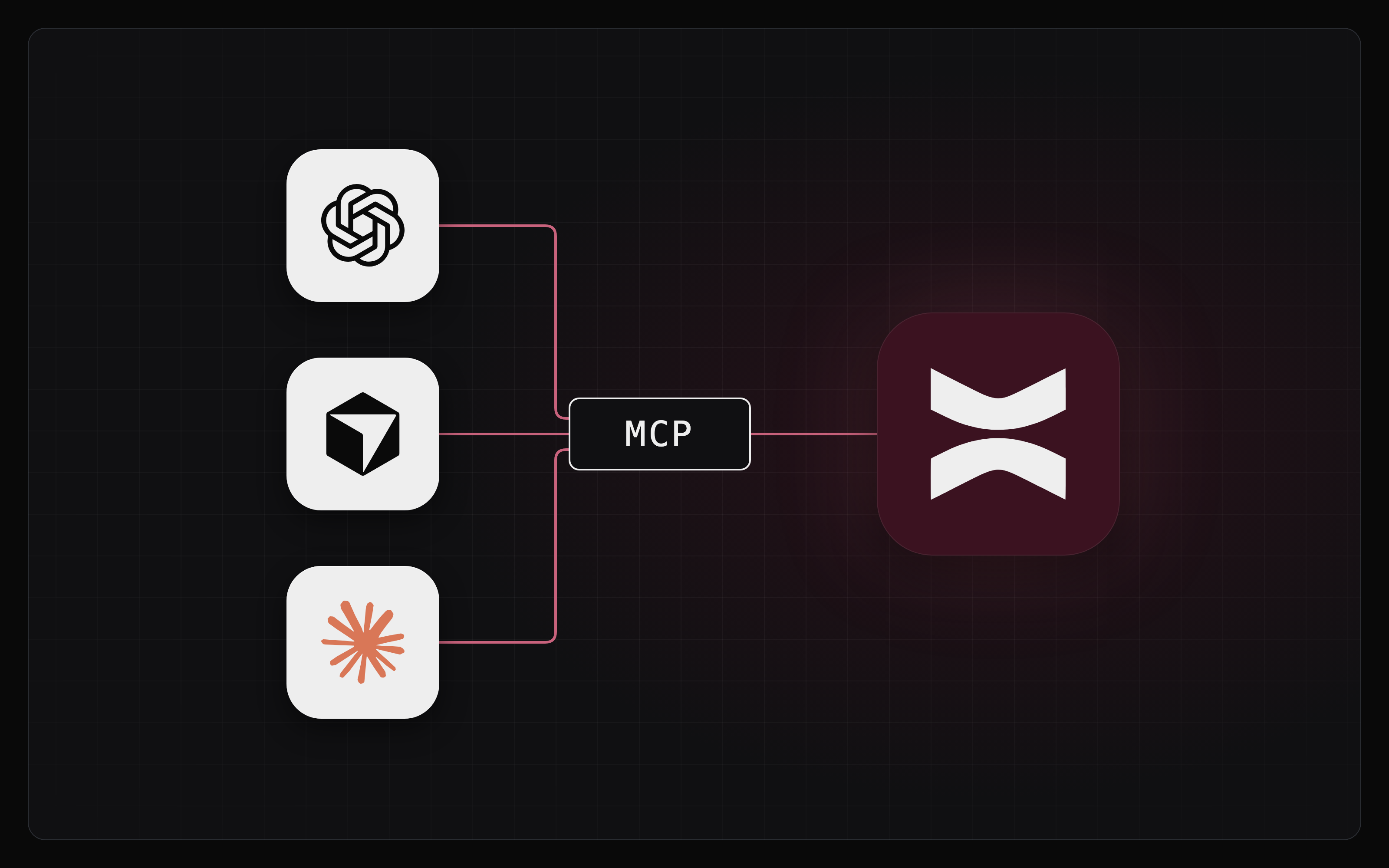
MCP (Model Context Protocol) is an open standard that lets AI tools connect to external platforms. The IRBC MCP server at https://mcp.irbc.com lets tools like Claude, ChatGPT, and Cursor work with your IRBC account directly: check balances, look up transactions, manage cards, send invoices, and move money.
Setup
ChatGPT
To use IRBC MCP in ChatGPT you will need to create an app. First, you may need to enable Developer Mode in Settings > Apps > Advanced settings.
To add IRBC as an app:
Go to Settings > Apps.
Click Create app, name it "IRBC", and enter the URL
https://mcp.irbc.com.Set authentication to OAuth, then click Create and complete the sign-in flow.
If you don't see Advanced settings in the Apps menu, ask your ChatGPT workspace administrator to enable custom apps for your team.
Claude.ai and Claude Desktop
Go to Customize > Connectors.
Click the + icon, then choose Add custom connector.
Name the connector "IRBC" and enter the remote MCP server URL
https://mcp.irbc.com.Click Connect next to the new IRBC connector to sign in.
If you're on a Claude Team or Enterprise plan, you may need your administrator to add this custom connector for you.
Claude Code
Run this in your terminal:
claude mcp add --transport http irbc https://mcp.irbc.comStart Claude Code, run /mcp, select irbc, and choose Authenticate. A browser window opens so you can sign in to IRBC and pick the organization to connect.
Cursor
Add this to your Cursor config at ~/.cursor/mcp.json:
{
  "mcpServers": {
    "irbc": {
      "url": "https://mcp.irbc.com"
    }
  }
}
Then go to Cursor Settings > Tools & MCP and click Connect next to IRBC to sign in.
Other MCP clients
Any MCP client that supports remote servers over Streamable HTTP with OAuth can connect to IRBC. Point it at https://mcp.irbc.com and complete the sign-in flow when prompted. The client discovers where to sign in on its own, so there is no client ID or secret to configure.
Authentication
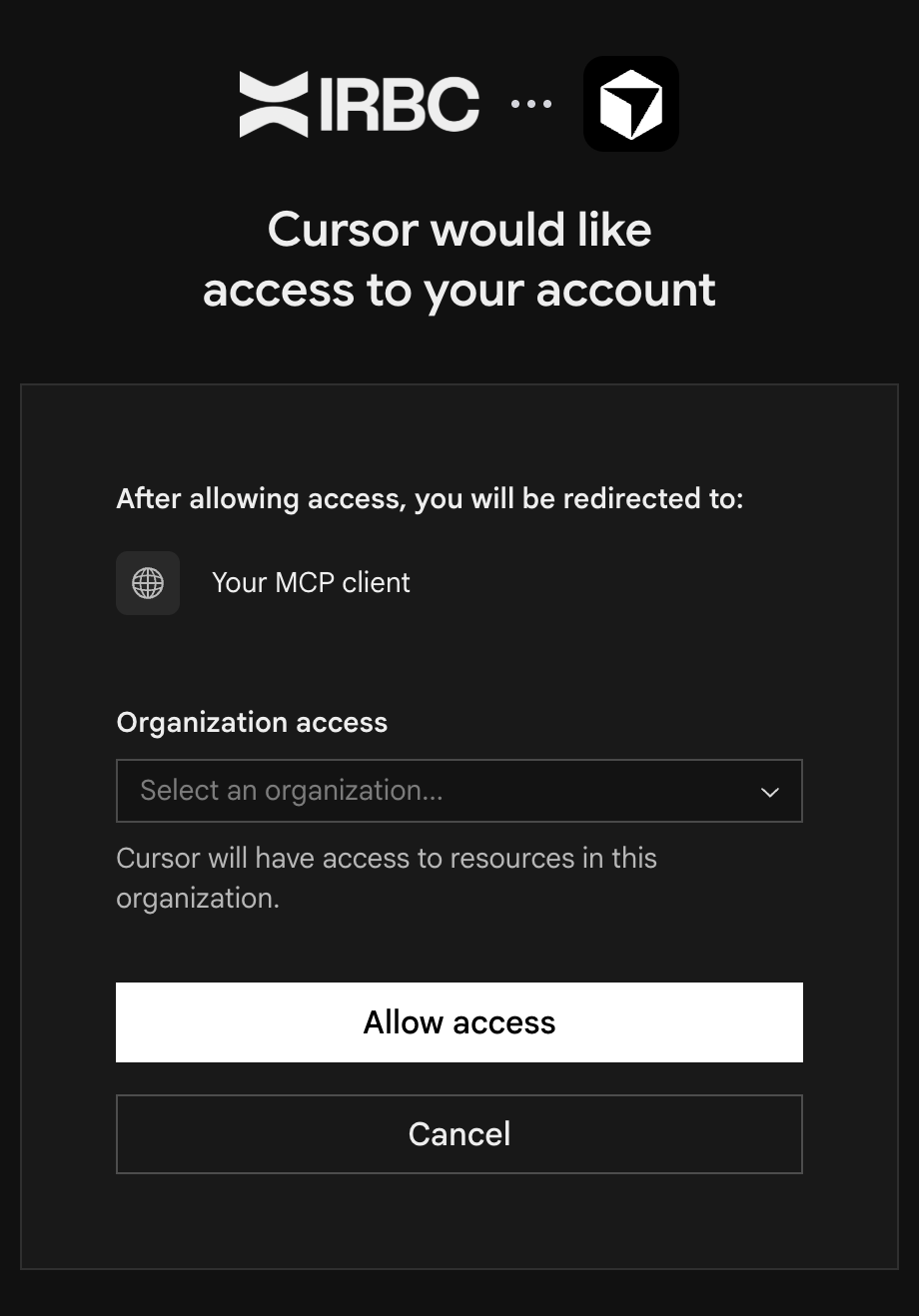
IRBC MCP uses OAuth, so your AI tool acts as you, with your role and permissions. When you connect, a browser window opens with the IRBC sign-in page:
Sign in with the same email you use for the IRBC dashboard.
Under Organization access, choose the IRBC organization you want to connect. Your AI tool can only reach that one organization.
Click Allow access. You will be sent back to your AI tool.
A few things to know:
One organization per connection. To switch organizations, disconnect IRBC in your AI tool and connect again, choosing the other organization.
Your role decides your tools. Admins see every tool. Members see a read-only set plus controls for their own cards. Your AI tool is never offered an action your role can't take.
Access follows your membership. If you're removed from an organization, the connection stops working immediately.
Your organization must be approved. The server is available once your IRBC application has been approved, and briefly unavailable during scheduled maintenance.
Authorizing transfers
Send Money and Pay Employees always need your 6-digit authorization code, the same one you use in the dashboard.
When your AI tool prepares a transfer, your client shows a prompt with the transfer details (recipient, amount, fees) and asks for the code. The code goes straight to IRBC. It never passes through the AI model, and the AI will never ask you to type it into the chat. Nothing moves until you enter it.
Read the details in the prompt before you enter the code. They're written by IRBC, not by the AI.
If your client can't show that prompt, the transfer is not sent. The AI will tell you the transfer is ready so you can send it from the IRBC app or dashboard instead.
Use case examples
Close out the month
"List every transaction over $5,000 from last month. Group them by recipient and flag any that are missing a receipt."
Get a month-end summary without exporting a CSV.
Pay a vendor
"Send $2,500 to Acme Supplies for invoice 1042."
The AI finds the recipient and prepares the transfer. Your client then shows the details and asks for your 6-digit code before anything is sent.
Chase unpaid invoices
"Which invoices are overdue? For each one, tell me the customer, amount, and how many days late it is."
See what's outstanding at a glance, then ask the AI to resend the ones that need a nudge.
Lock down a card
"Freeze the card ending in 4821."
Stop spending on a lost card in seconds, from whichever tool you're already in.
Share your deposit details
"What are our USD account and routing numbers? Format them so I can paste them into an email."
Pull your own receiving details without opening the dashboard.
Cross-reference with other tools
IRBC MCP works alongside other MCP servers. If you also have Slack, Linear, or Notion connected, you can combine them:
"Summarize this week's outgoing payments and post it to #finance in Slack."
Each server handles its own domain, and the AI coordinates between them.
If something isn't working
Can't sign in: Make sure you can sign in to the dashboard at app.irbc.com first. The MCP server uses the same account.
Connected to the wrong organization: Disconnect IRBC in your AI tool, connect again, and pick the right organization under Organization access.
A tool is missing: Some tools are admin-only, and invoicing tools need Payments enabled. If your role recently changed, disconnect and reconnect so your AI tool picks up the new tool list.
"This client cannot prompt for an authorization code": Your AI tool can't show the code prompt yet, so transfers can't be authorized there. Send the transfer from the IRBC app or dashboard.
Connection stopped working: Check that your membership is still active and that IRBC isn't in a scheduled maintenance window.
If it's still not working, collect:
Your organization name
The exact error message
Which AI tool you're using
Then reach out to us at support@irbc.com.